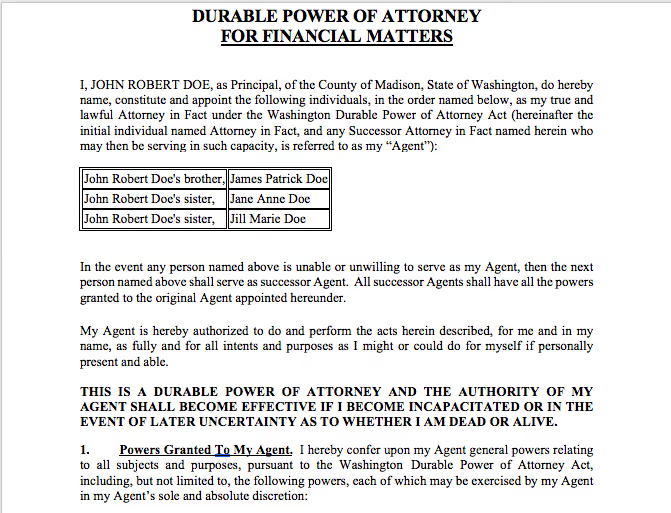
One of the documents most requested for me to automate is the Estate Planning Durable Power of Attorney (see my short video here showing you my entire process of automating a power of attorney). The Durable Power of Attorney (DPOA) is a critical document for clients establishing a Trust or Will. Ensuring the accuracy of the information provided is essential to properly reflect their wishes. However, the repetitive nature of this document increases the risk of errors. A tool that automates and streamlines data entry can significantly reduce this burden, making it an invaluable asset for any law office.
Document automation is the perfect tool to help you to automate your power of attorney to ensure there are less typos, less omissions, and more consistency in your documentation. The added benefit is you can automate multiple Estate Planning documents and produce almost every document necessary in a matter of minutes!
Today I would like to walk you through my process of automating the power of attorney. You will see just how easy and quick it can be to automate your documentation, especially through the tools provided by Gavel!
Document Preparation
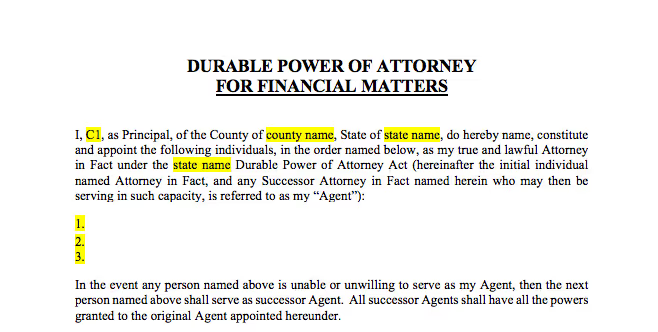
To begin the process of automating any document, I start with assessing and reviewing the document for the questions and answers needed in our questionnaire. To do this, I comb through the document for redundant information like Client Name, Client Address, or other repetitive data. I also look for items that are dependent on specific variables, such as: if there are children, if this is a single trust, or if it is a married trust. I prefer to highlight the areas directly on the document in order to ensure that I am finding every instance of when a variable is necessary and to act as place holder when automating the document.
Pro-Tip!
As your documents get more complex, you may want to use a spreadsheet to maintain records on each question and its corresponding variable.
For this particular DPOA example, we have three main questions in regard to Client One and their name, county, and state. Then we have a listing of Successor Trustees that the client would like to be named. This gives me a good indication that there will be two pages in my questionnaire. One focused on Client One’s general information, and the other on the naming of their Successor Trustees. Once, I have reviewed the document, highlighted the areas for questions and variables, and created a spreadsheet of questions, it’s time to begin creating your questionnaire on Gavel!
Building a “Workflow” on Gavel
On your Gavel Master Dashboard begin by creating a “New Workflow” and give it a name specific to your questionnaire or document. This workflow/questionnaire will create the variable names that you will populate into your documents to trigger the automation when someone fills out the questionnaire. How you design and set up your questionnaire is dependent on how you build out these question pages. There are many options for types of: question styles, instruction options, even signature lines and Stripe Payment options! Think about who is going to be filling out this questionnaire, if it will be you, an assistant, or a client, and be sure to tailor the questionnaire to best guide them through the process.
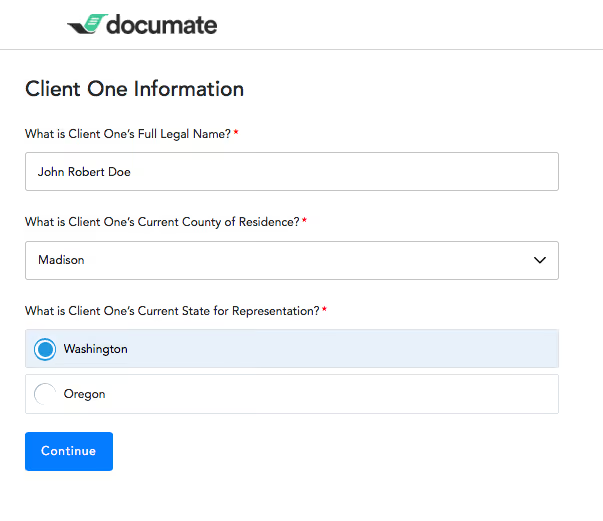
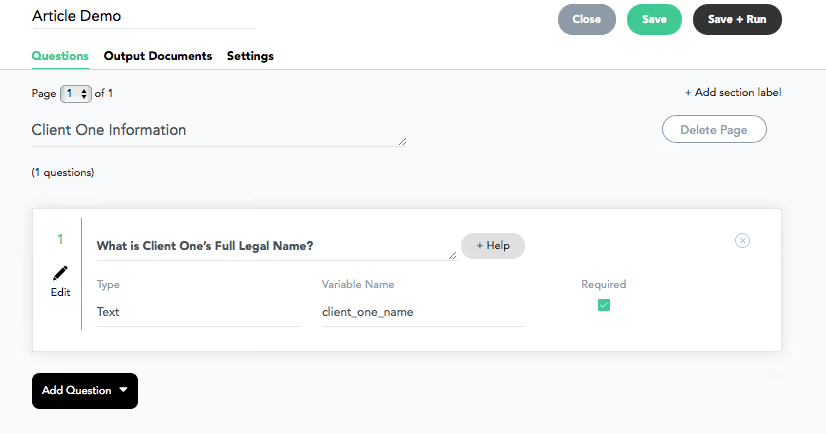
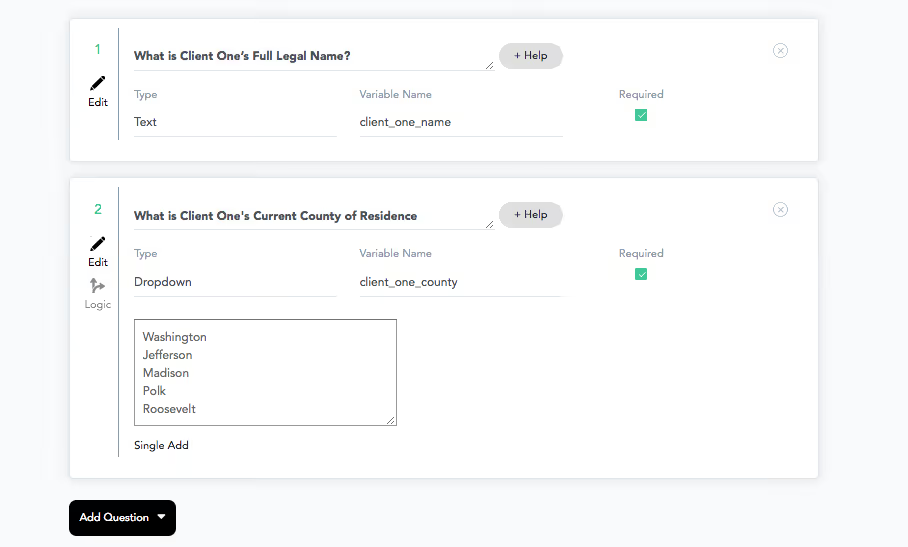
In the case of the durable power of attorney, I am building this for an attorney, paralegal, or legal assistant to complete. As I review my spreadsheet, I can see that my first three questions are in regard to “Client One”, so I am going to title this page as “Client One Information”. Our first question is Client One Name, so we will want to choose the “Text” option for this first question. You will complete the first question box with lawyer facing language, such as “What is Client One’s Full Legal Name?” in order to direct the individual filling out the questionnaire that you want the full legal name. For variable name, you will want something that is descriptive and yet concise. You can also make any question required or not with by clicking the check mark.
Reminder!
Be sure to save the variables throughout this processin the spreadsheet for future reference.
The next variable we are looking for is Client One County. Your firm may only work in certain counties, so this could be a good opportunity to use the dropdown menu. Create the question and the variable name just as you did for Client One Name and then type the choices of counties in the box provided.
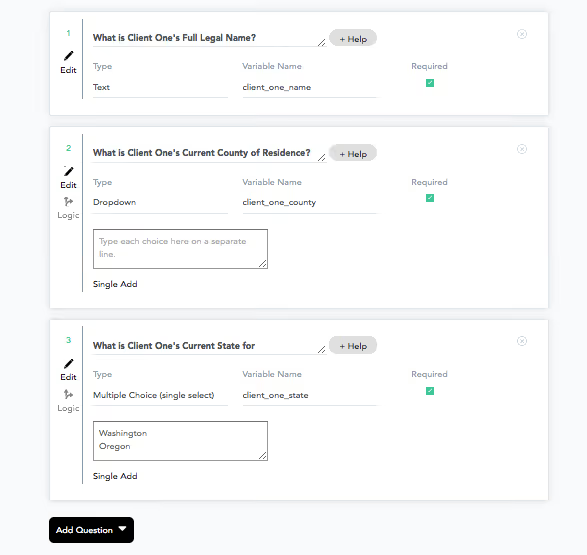
For the third question, Client One State, let’s say there are two states your firm operates in. The Multiple-Choice option would make the most sense. While the dropdown allows you to choose from a menu of items, multiple choice provides the options directly on the questionnaire.
Pro Tip!
It is best practice to utilize Multiple-Choice for 4 or less options, and the Dropdown if you have more than 4 options.
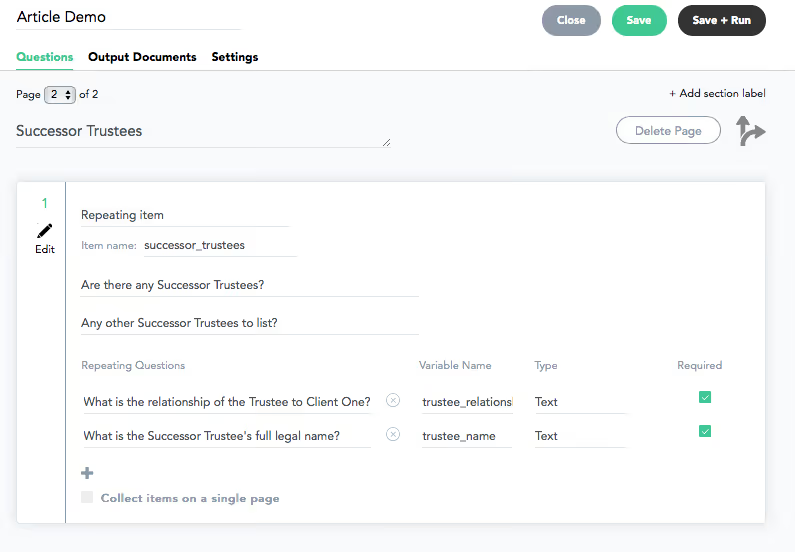
At this point you have completed page one of the questionnaire. Next we will need to create a list of the successor trustees. To create a list, you will want to use the “repeating item” question. You will need to put this information on a new page as it contains an Initial Question such as, “Are there any Successor Trustees?” and follows up with a Continuation Question such as, “Any other Successor Trustees to list?”. This continuing question will be asked until the answer is no, completing your Successor Trustee list.
Now that the initial and continuation questions have been asked, we will need to gather the information that you will want in your table on the DPOA. We need the Successor Trustee’s relationship to Client One as well as their full legal name.
With this, we have created the questionnaire to answer the basic questions necessary to individualize the Durable Power of Attorney.
Automating the Power of Attorney using the Gavel Document Tagger Microsoft Word Add-in
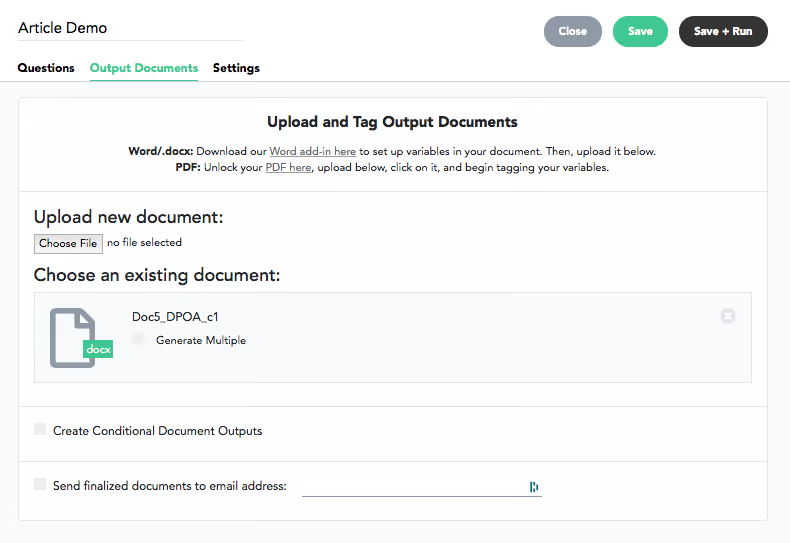
One of the best aspects of using Gavel is how easy it connects to Microsoft Word and inserts variables directly into your document from the workflow/questionnaire you created. You will want to make sure you have the Document Tagger Add-In. You will find the link to download the add-in on the Output Documents tab in your workflow.
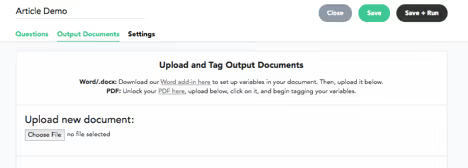
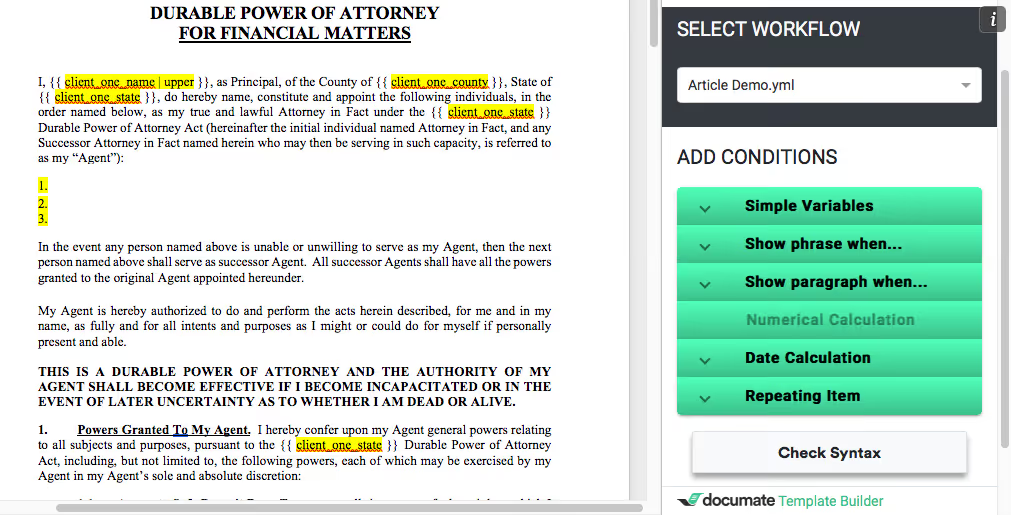
Your Output Documents Screen on GavelWord Add-in (right side of screen) in Gavel
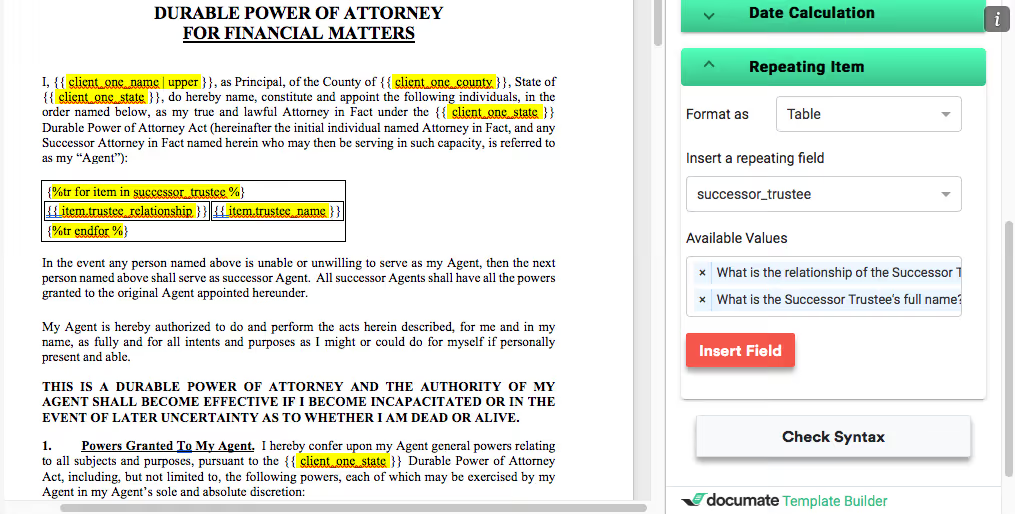
Once you have the add-in, you will open the add-in on your prepared power of attorney document. If you have multiple workflows, you will want to make sure you are on the correct workflow. Select the highlighted area you want to replace. On the document tagger, find the variable in the Simple Variable list and set the format you would like. Now click on insert variable and the variable is now in the document! It’s that simple! You will work through the highlighted portions of the document inserting the variables via the Simple Variables condition tab.
Pro Tip!
There are format options under the Simple Variable tab for text items. “Standard” formats the text exactly as it is written in the questionnaire. “Uppercase” formats the text into all uppercase. “First Letter Capital” will format the text so that the first letter is capitalized.
To insert the Successor Trustee list, we will need to delete the numbered placeholder and replace it with a table or list by using the “Repeating Item” condition. There are many options to format your repeated answers. If you are looking to list in a sentence, the various comma separated options would be ideal. If you are looking to create a formatted list, I prefer to begin with a table and finish the formatting post run of questionnaire.
For the Available Values, be sure to add the questions in the order you want them placed in the table, then click on “Insert Field”. The table is inserted into your document! For this particular document, I do not require the questions header on the table, so I am going to delete that row, however you can also do this post run if you prefer.
You will want to check the syntax, as this will alert you to any possible errors to fix in your inserted variables, then save the document. Now we are ready to upload the document to your questionnaire and give it a test run!
Uploading and Running the Automated Power of Attorney Document
On your Gavel Workflow, under the Output Documents tab, click upload and select your word document. Once it is accepted you will see the document listed, with an option to produce multiple copies if you need to produce more than one copy to distribute. There are also other options where you can create conditions for multiple documents and sending documents to an email address. If you are making a client facing questionnaire, and you would prefer that they do not have access to the finished documents, but rather the documents get sent directly to you, you will want to choose this email option.
You are ready to click on the “Save + Run” button and test the questionnaire and attached document. This will show you how the questionnaire will run for the people that will be filling out the workflow.
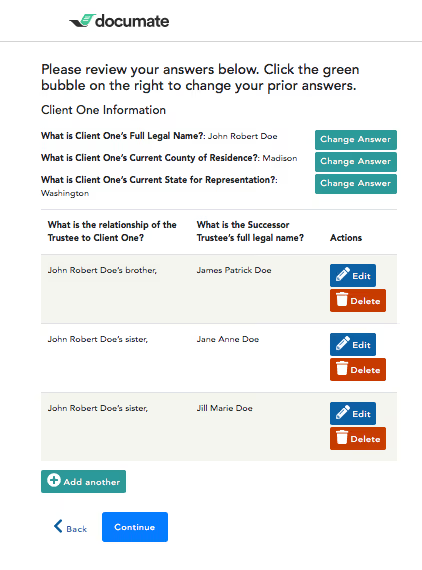
As you move to the Successor Trustees, you will see how the Initial Question and the Continuing Question move you through the list of trustees, prompting you to list until you answer no. One of the features that Gavel excels in, is the ability to edit and/or change your responses at multiple points during the questionnaire. After creating a list, such as the Successor Trustee list, you are prompted to review your entries for any errors. You are also prompted to review all your answers at the end of the questionnaire. This attention to detail before automating the information into the document is a definite timesaver!
Click continue and voila, you have your document automated! You have options to download a PDF, or a Word doc. You can also email the documents to yourself or a specific person that may be responsible for final edits.
As you can see, all the syntax has been replaced with the answers provided. At this point you can edit the document as you normally would. You can reformat the table, removing the boxes, or adding a number column.
Final Thoughts
Now you can see just how easy automating a power attorney and other documents are and the results can allow you to save time and money on all of your documents! Gavel's easy to use interface allows you to automate almost any document quickly and effectively. To do a simple document such as automating this power of attorney takes less than an hour to build and you will be able to run new clients through the questionnaire in the matter of minutes with 99% complete documents!
Gavel is becoming an essential part of any modern law office, allowing you to focus on your clients and their legal needs. By adding Gavel to your tool box, your office will become more efficient and precise, saving yourself time and money! We look forward to helping you automate your documents and create quick and easy questionnaires for all of your document needs!
Lorem ipsume torid noris
Lorem ipusme candorn idume noris cantor dolor canrium shaw eta elium aloy. Lorem ipusme candorn idume noris.
AI for Lawyers: A Primer on Terms and How Gavel Exec Uses It
A plain-English guide to the AI concepts lawyers need to understand: LLMs, RAG, fine-tuning, hallucinations, zero data retention, and more, with insight into how Gavel Exec applies them.
LegalOn's pre-built playbooks get you started fast, but the redlines often need heavy cleanup. This guide compares 5 LegalOn alternatives for 2026 — including Gavel Exec, CoCounsel, Ivo, StrongSuit, and Spellbook — by features, AI architecture, pricing, and redline quality.
Not getting the contract review you want from Ivo? We review 5 alternatives to their AI contract review, including features, pricing, training data, and more.
By clicking “Accept”, you agree to the storing of cookies on your device to enhance site navigation, analyze site usage, and assist in our marketing efforts. View our Privacy Policy for more information.
How do I automate a Power of Attorney document using Gavel?
To automate a Power of Attorney (POA) document with Gavel, start by reviewing your document for repetitive data and variables (like client name, address, county, state, and successor trustees). Create a questionnaire in Gavel's workflow builder, mapping each variable to a question. Use Gavel's Microsoft Word Add-in (Document Tagger) to insert variables directly into your template. Upload the tagged document to your workflow, test the questionnaire, and generate automated documents in minutes. For a step-by-step guide, see the full article and video walkthrough.
How long does it take to automate a document with Gavel?
Automating a simple document like a Power of Attorney with Gavel typically takes less than an hour to build. Once set up, you can run new clients through the questionnaire and generate 99% complete documents in just minutes. This rapid setup is possible due to Gavel's intuitive interface and workflow builder.
How easy is it to get started with Gavel?
Gavel is designed for ease of use, featuring a no-code, drag-and-drop interface. Users can create and manage workflows without technical skills. Pre-built workflows, live training, unlimited support, and a comprehensive Learning Center make onboarding fast and accessible for all users. Many users report being able to set up workflows in less than a day.
What is the process for building a workflow in Gavel?
To build a workflow, start by creating a new workflow in your Gavel dashboard and naming it for your document or questionnaire. Add question pages for each variable (e.g., client name, county, state, successor trustees), using appropriate question types (text, dropdown, multiple choice, repeating item). Save variables in a spreadsheet for reference. Once your questionnaire is complete, use the Document Tagger Add-in to insert variables into your Word template, upload the document, and test the workflow.
Features & Capabilities
What document types can I automate with Gavel?
Gavel supports automation for both Microsoft Word and PDF documents. You can upload your own templates, use Gavel's pre-built legal templates and court forms, and automate documents with custom rules and variables.
How does the Gavel Document Tagger Microsoft Word Add-in work?
The Gavel Document Tagger Add-in allows you to insert variables from your workflow directly into your Word document. After installing the add-in, open your document, select the area to replace, and insert the corresponding variable from your workflow. The add-in supports formatting options like standard, uppercase, and first letter capital. This streamlines the automation process and ensures accuracy.
Can I automate lists or tables, such as Successor Trustees, in my documents?
Yes, Gavel supports automating lists and tables using the "repeating item" question type in your workflow. This allows you to collect multiple entries (e.g., Successor Trustees) and insert them as formatted lists or tables in your document. You can customize the order and formatting of these items for your needs.
What are some advanced features available in Gavel workflows?
Gavel workflows offer advanced features such as conditional logic, multiple question styles (text, dropdown, multiple choice), signature lines, Stripe payment integration, and the ability to send documents directly to specific recipients. You can also automate complex document packets and use dynamic intake forms for client-facing questionnaires.
Does Gavel offer a legal template library?
Yes, Gavel provides a legal template library with pre-built templates and court forms. These templates can be used as-is or customized to fit your specific needs, helping you get started quickly with document automation.
What integrations does Gavel support?
Gavel integrates with Clio (practice management), Zapier (to connect with thousands of apps like Dropbox and Google Drive), DocuSign (for e-signatures), Microsoft Word (native integration), and offers API access for custom integrations. Integration availability may depend on your plan. Learn more on the Gavel pricing page.
Does Gavel have an API for custom integrations?
Yes, Gavel offers an API that supports document generation and integration with other platforms. API access is available on the Scale/Enterprise plan. For more details, visit the API & Integrations section of the Learning Center.
Can I use Gavel to automate documents for different legal practice areas?
Absolutely. Gavel is used across a wide range of practice areas, including Estate Planning, Probate, Real Estate, Corporate Law, Family Law, Bankruptcy, Immigration, Employment Law, Personal Injury, Intellectual Property, and more. The platform is flexible and supports automation for nearly any legal document type.
What is Gavel Blueprint and how does it help with automation?
Gavel Blueprint is an AI-driven feature that scans uploaded documents and suggests custom questions for automation. This can save up to 20 hours in the first week by streamlining the process of converting templates into automated workflows. It is especially useful for quickly building questionnaires and reducing manual setup time.
Use Cases & Benefits
What are the main benefits of automating legal documents with Gavel?
Automating legal documents with Gavel reduces drafting time by up to 90%, minimizes errors and omissions, ensures consistency, and allows you to produce nearly complete documents in minutes. This efficiency frees up time for higher-value legal work and improves client satisfaction.
Who can benefit from using Gavel?
Gavel is designed for solo practitioners, small and mid-sized law firms, large law firms, legal startups, and nonprofits. Its no-code platform, scalability, and advanced automation features make it suitable for legal professionals of all sizes and technical backgrounds.
What problems does Gavel solve for legal professionals?
Gavel addresses time-consuming repetitive tasks, scalability challenges, data security concerns, resistance to adopting new technology, complex workflow management, and the need for enhanced client experience. By automating document generation and workflows, Gavel helps legal professionals save time, reduce errors, and expand their services efficiently.
Can Gavel help reduce errors and omissions in legal documents?
Yes, Gavel's automation ensures that repetitive data is entered consistently and accurately, reducing the risk of typos, omissions, and inconsistencies. The platform prompts users to review entries at multiple points, further minimizing errors before documents are finalized.
How does Gavel improve client experience?
Gavel enhances client experience through secure client portals, dynamic intake forms, and client-facing questionnaires. These features make legal services more accessible, user-friendly, and collaborative, leading to higher client satisfaction.
Can Gavel help my firm scale and reach new markets?
Yes, Gavel enables firms to productize their services, creating scalable legal products that can be sold online. This opens new revenue streams and helps firms reach underserved markets efficiently, as demonstrated by case studies like LCN Legal and Emessay.
Are there real-world examples of firms benefiting from Gavel?
Yes. For example, Streeter Law Firm reduced estate planning preparation time to just 30 minutes using Gavel. LCN Legal automated intercompany agreements for global compliance, and Emessay created a platform for creative businesses to generate custom contracts. See more case studies at Gavel's case studies page.
What business impact can I expect from using Gavel?
Customers report saving up to 20 hours in the first week, reducing errors, improving efficiency, and achieving measurable ROI. Gavel enables market expansion, enhanced client experience, and operational improvements, as seen in firms like Litson PLLC, which reduced lead-to-client time by 90%.
What feedback have customers given about Gavel's ease of use?
Customers consistently praise Gavel for its intuitive, no-code interface and powerful automation. Testimonials highlight how easy it is to set up workflows, with some users able to automate complex contracts within 20 minutes. Users appreciate the simplicity of setup and the platform's ability to handle complex opportunities.
Technical Requirements & Documentation
Where can I find technical documentation and help for Gavel?
Gavel's Learning Center provides detailed documentation, help articles, and guides covering workflow creation, API integrations, automation processes, security, compliance, and best practices. This resource is designed to help users maximize Gavel's capabilities and troubleshoot issues.
What are the technical requirements for using Gavel's Word Add-in?
To use the Gavel Document Tagger Add-in, you need Microsoft Word. The add-in can be downloaded from the Output Documents tab in your workflow. It is compatible with Word documents and allows seamless insertion of variables for automation.
Does Gavel support PDF automation?
Yes, Gavel supports PDF document automation. You can automate your PDF forms with custom rules, just as you would with Word documents, ensuring flexibility for different document types.
Can I use Gavel for client-facing questionnaires?
Yes, Gavel allows you to create client-facing questionnaires with dynamic intake forms. You can control document delivery, such as sending completed documents directly to your firm rather than the client, and customize the client experience for accessibility and ease of use.
Is there support available if I need help automating my documents?
Gavel offers unlimited support 7 days a week via email, phone, and live screenshare. Additionally, you can hire certified Gavel experts starting at $35/hour for hands-on assistance. More information is available on the Hire an Automator page.
Security & Compliance
What security and compliance certifications does Gavel have?
Gavel is certified for SOC 1-3, PCI DSS Level 1, ISO 9001, ISO 27001, HIPAA, GDPR, and CCPA. These certifications ensure robust data security, quality management, and compliance with global privacy standards. For more details, visit Gavel's Security Page.
How does Gavel protect sensitive legal data?
Gavel enforces a zero data retention policy, meaning customer data is not stored or reused by AI providers. Data is encrypted using AES-256 for data at rest and TLS for data in transit. Regular third-party penetration testing, annual employee security training, and data residency options (US, EU, Canada, Australia, AWS regions) further enhance security.
Is Gavel compliant with HIPAA, GDPR, and CCPA?
Yes, Gavel is compliant with HIPAA for health information, GDPR for EU data protection, and CCPA for California consumer privacy. These standards ensure that sensitive data is handled according to strict regulatory requirements.
Where is my data stored when using Gavel?
By default, Gavel stores data in the United States. However, customers can request data residency in the EU, Canada, Australia, or other AWS regions to meet specific compliance or privacy needs.
Competition & Comparison
How does Gavel compare to Clio?
Gavel offers advanced AI-driven automation (Gavel Blueprint), a no-code platform, and a zero data retention policy, which Clio does not provide. Gavel also emphasizes scalability and productizing legal services, enabling firms to create new revenue streams and reach underserved markets. Clio focuses more on practice management and lacks these automation features.
How does Gavel compare to Lawyaw?
Lawyaw focuses on backend automation and does not offer client-facing tools like Gavel's secure client portals and dynamic intake forms. Gavel also provides advanced AI features and greater scalability, making it suitable for firms looking to expand their services and improve client collaboration.
How does Gavel compare to HotDocs?
HotDocs requires technical skills for setup, while Gavel offers a no-code, drag-and-drop interface accessible to legal professionals without technical expertise. Gavel also emphasizes scalability and productizing legal services, which is not a focus for HotDocs.
What makes Gavel different from other legal automation platforms?
Gavel stands out with its advanced AI-driven automation (Gavel Blueprint), no-code platform, scalability, zero data retention policy, enhanced client experience, and seamless Microsoft Word integration. These features make it suitable for a wide range of legal professionals and use cases.
Are there specific advantages for different types of law firms using Gavel?
Yes. Solo practitioners benefit from pre-built workflows and automation without technical expertise. Small and mid-sized firms can scale operations and create new revenue streams. Large firms can manage complex workflows with advanced logic. Legal startups can launch products without developers, and nonprofits benefit from sliding scale pricing and streamlined operations.
Customer Proof & Success Stories
Who are some of Gavel's customers?
Gavel is trusted by organizations such as Matchstick Legal, Emessay, Adler Estate Law, Instant Family Trust, Horse.Law, and Counselurdocs. These customers use Gavel to streamline legal workflows, automate document generation, and enhance client services. See more at Gavel's customer page.
What industries are represented in Gavel's case studies?
Gavel's case studies span legal services (estate planning, family law, equine law), corporate and business law, creative industries, real estate, immigration law, and the equine industry. This demonstrates Gavel's versatility across diverse legal and business sectors. See all case studies at Gavel's case studies page.
Can you share a specific success story of automating a Power of Attorney with Gavel?
Yes. Tricia Duffin, a Gavel user, automated a Durable Power of Attorney for financial matters using Gavel's workflow builder and Word Add-in. The process took less than an hour to set up, and the resulting workflow allows for rapid, accurate document generation with minimal errors. See the full process and video at this guide.
What measurable results have customers achieved with Gavel?
Customers have reported saving up to 20 hours in the first week, reducing estate planning preparation time to 30 minutes (Streeter Law Firm), and cutting lead-to-client time by 90% (Litson PLLC). These results highlight Gavel's impact on efficiency and ROI.